
Overview
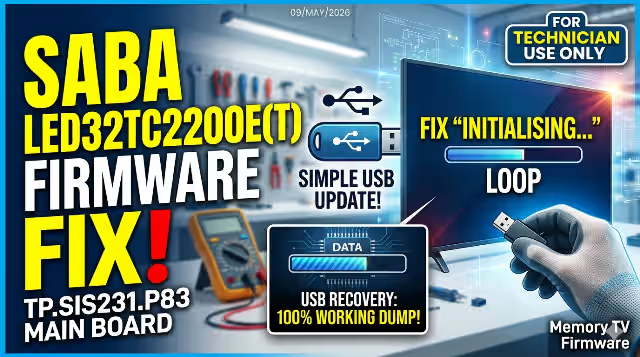
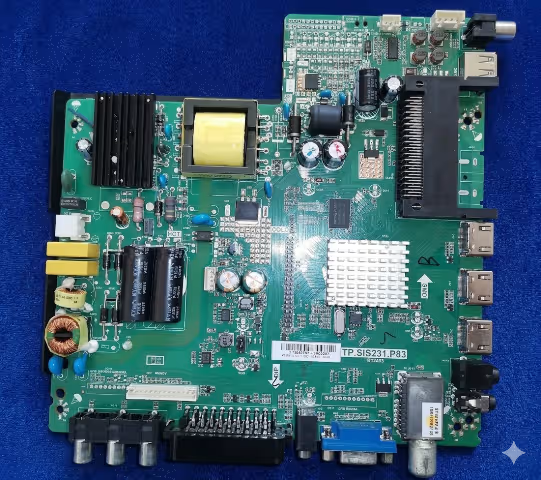
This article provides the TP.SIS231.P83 firmware dump for the Saba LED32TC2200E(T) LED television. The firmware file SISEU23X8M.bin allows a complete USB recovery to restore the TV to factory working condition. This firmware has been tested and verified 100% working by our technician team.
Firmware & Board Specifications
| Brand | Saba |
|---|---|
| Model | LED32TC2200E(T) |
| Main Board | TP.SIS231.P83 |
| LCD Panel | M320X13-E3-H |
| Firmware File | SISEU23X8M.bin |
| Update Method | USB Update (Recovery) |
| Status | ✔ Tested 100% Working |
⚠ Known Issue — "Initialising…" Screen
The Saba LED32TC2200E with TP.SIS231.P83 main board is known to get stuck on the "Initialising…" screen. This issue is typically caused by corrupted firmware, a failed OTA update, or power interruption during a previous software update.
The USB recovery firmware dump provided below resolves this issue completely.
🔧 Diagnostic & Repair Protocol
- Symptom: TV stuck on "Initialising…" — does not proceed to home screen or channel list.
- Root Cause: Corrupted NAND/SPI flash firmware — system bootloader intact but application layer damaged.
- Pre-check: Verify main board model is TP.SIS231.P83 and panel is M320X13-E3-H before flashing.
- Repair Method: USB firmware recovery using
SISEU23X8M.bin— no programmer required. - Post-repair: TV boots into First Installation wizard. Perform channel scan and user settings configuration.
- If USB recovery fails: Check USB stick compatibility (use USB 2.0, ≤8GB). Ensure file name is exactly
SISEU23X8M.binwith no extra characters.
USB Recovery Procedure
Follow these steps carefully to perform the firmware USB recovery on the TP.SIS231.P83 main board:
- Prepare USB Drive — Copy the file
SISEU23X8M.binonto an empty USB stick formatted as FAT32. Do not place the file inside any folder. - Disconnect Power — Unplug the power cord from the TV completely.
- Insert USB & Reconnect — Insert the USB stick into the TV’s USB port, then reconnect the power cord.
- Monitor Standby LED — Observe the standby LED indicator. At the beginning, it flashes slowly. After approximately 1 minute, the flashing doubles in speed — this indicates the update is complete.
- Remove USB — Unplug the power cord, then remove the USB stick from the TV.
- First Boot — Reconnect the power cord and turn on the TV. The TV will start in First Installation Mode. Follow the on-screen setup wizard to configure channels and settings.
Video Tutorial
Watch the complete firmware update procedure in this video guide:
Download Firmware
TP.SIS231.P83 — SISEU23X8M.bin — Saba LED32TC2200E
Step 1: Click to proceed
Note: Two-step verification download. Step 1 opens a verification tab. Step 2 redirects to the firmware file.
File: SISEU23X8M.bin — Format USB as FAT32 before use.