
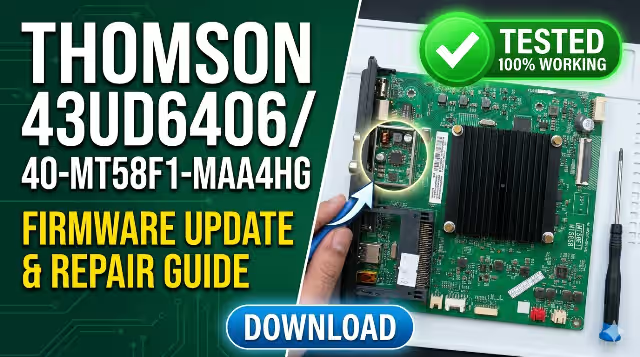
40-MT58F1-MAA4HG Firmware Dump
Thomson 43UD6406 USB Update
Verified firmware dump for technician-level board repair. USB flash method — tested 100% working on production units.
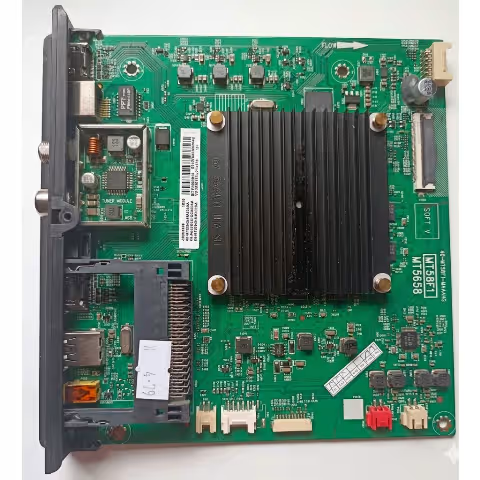
Board Overview & Specifications
The 40-MT58F1-MAA4HG is the main logic board used in the Thomson 43UD6406, a 43-inch UHD 4K smart television. This board is built around a MStar/MediaTek system-on-chip platform and handles all primary functions including video processing, smart TV operating system, HDMI/USB input management, audio output, and network connectivity (Wi-Fi and Ethernet).
Firmware corruption on this board is a common failure mode, typically caused by power surges, interrupted OTA updates, or degraded eMMC flash memory. This firmware dump is extracted directly from a known-good production unit and has been verified working across multiple repair cases. It restores the TV to factory software state via USB flash — no programmer required.
USB Firmware Update Procedure
Prerequisites: You need a USB flash drive formatted as FAT32 (recommended max 8 GB capacity), a computer to extract the firmware archive, and stable mains power throughout the update process.
- Extract the downloaded firmware archive on your computer. Copy all extracted files directly to the root directory of the USB flash drive — do not place them inside any folder. The TV bootloader expects files at the root level.
- Power off the TV completely by unplugging the power cable. Insert the USB flash drive into any available USB port on the TV while it is completely powered off and disconnected.
- Locate the physical Power button on the TV chassis (not the remote control). Press and hold this button continuously.
- While still holding the Power button, plug in the TV power cable. Continue holding the button. The TV will power up and the bootloader will automatically detect the firmware files on the USB drive. The update process will begin — you may see a progress bar or flashing LED indicator.
- When the First Time Installation screen (initial setup wizard) appears on the display, the firmware update has completed successfully. Release the Power button, remove the USB drive, and follow the on-screen setup prompts to configure the TV.
Critical Warning: Do NOT unplug the TV or remove the USB drive during the update process. A power interruption during firmware writing can permanently brick the main board’s eMMC chip, requiring chip-level repair with a BGA rework station. Ensure stable mains power before starting. This procedure is intended for qualified technicians only.
Known Issues — Thomson 43UD6406 / 40-MT58F1-MAA4HG
The following symptoms are commonly reported with the Thomson 43UD6406 and are frequently resolved by reflashing the 40-MT58F1-MAA4HG firmware. Always perform hardware diagnostics first to rule out component-level failures before attempting a firmware update.
Diagnostic & Repair Protocol
Before performing a firmware reflash, it is essential to verify that all hardware subsystems are functioning correctly. The table below outlines the standard diagnostic checkpoints, expected measurements, and corrective actions for each test point on the Thomson 43UD6406. Always follow the priority order: PSU → Backlight → Main Board Firmware → T-Con → Panel.
| Test Point | Expected Value | Action if Failed |
|---|---|---|
| Standby Voltage (PSU → Main) | 5V ± 0.2V | Replace PSU board or check standby regulator IC |
| Main Supply Rail | 12V ± 0.5V | Check MOSFET, filter capacitors on PSU output stage |
| Backlight Drive Voltage | 75–110V DC (panel-dependent) | Check LED driver IC and backlight LED strips for open/short |
| eMMC Chip Status | Readable via programmer or USB boot | Reball or replace eMMC IC, then re-flash firmware dump |
| LVDS / T-Con Connection | Clean signal, no visual artifacts | Reseat LVDS cable firmly; replace T-Con board if artifacts persist |
| Wi-Fi Module | Detected in system info menu | Reseat ribbon cable connection; replace module if shorted |
| HDMI ESD Protection IC | No short circuit to ground on signal pins | Replace HDMI protection / switch IC (commonly TPD12S015) |
| Audio Amplifier IC Output | Clean waveform on oscilloscope | Replace audio amplifier IC; check speaker wiring continuity |
| Boot Sequence (UART Log) | Clean boot to Android/Linux, no kernel panic | Re-flash complete firmware dump via USB or eMMC programmer |
| IR Receiver Module | Responsive to remote control commands | Replace IR sensor module; check flat cable to main board |
Repair Priority Order: Always verify PSU output voltages → Backlight circuit → Main board firmware integrity → T-Con / Panel. Do not attempt firmware reflash until all power rails are confirmed stable. Flashing firmware with unstable or fluctuating power can irreversibly damage the eMMC flash memory chip.
Video Tutorial — USB Firmware Update
Watch the step-by-step video tutorial below demonstrating the complete USB firmware update procedure for the Thomson 43UD6406. This video covers file preparation, USB drive formatting, the button-hold boot sequence, and what to expect during the flashing process.
Download Firmware Dump
40-MT58F1-MAA4HG — Thomson 43UD6406 | Tested & Verified
redirects download. File hosted on linkvertise servers.