
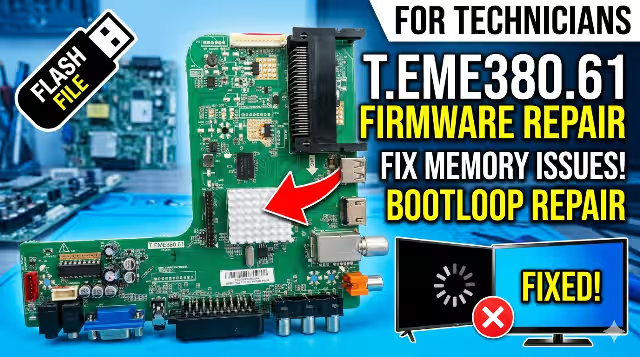
T.EME380.61 Firmware for GRANDIN LHD22CA0‑LED22TA0BE – USB Flash Update Download
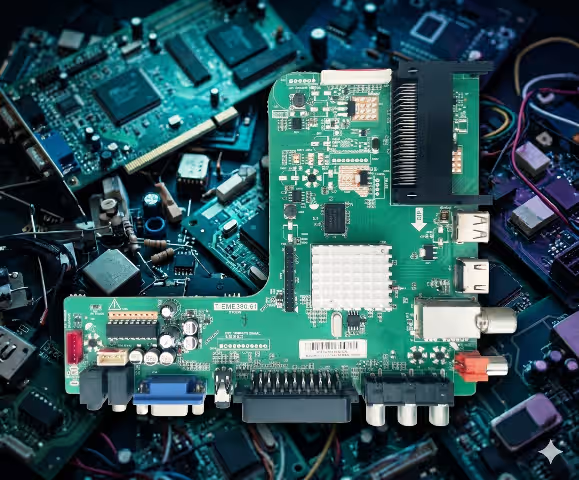
Firmware Overview
The T.EME380.61 firmware update for GRANDIN LHD22CA0‑LED22TA0BE is available to address frequent reinitializing problems, boot‑loop failures, and other memory‑related issues. This dump file has been fully tested and verified 100% working by qualified technicians.
| Parameter | Details |
|---|---|
| Board Model | T.EME380.61 |
| TV Brand / Model | GRANDIN LHD22CA0‑LED22TA0BE |
| Screen Size | 22″ LED |
| Firmware File | SISEU23X8M.bin |
| Archive Format | WinRAR (.rar) |
| USB Format | FAT32 |
| Update Method | USB Flash (Auto‑Detect) |
| Status | ✔ Tested 100% Working |
Known Issues for GRANDIN LHD22CA0‑LED22TA0BE
The following symptoms are commonly reported by technicians servicing this model and are typically resolved with a firmware reflash or memory dump replacement:
- Continuous Reinitializing / Auto‑Reset Loop – TV repeatedly returns to the initial setup wizard after every power cycle.
- Boot‑Loop / Stuck on Logo – Unit powers on but never passes the GRANDIN splash screen.
- No Picture, Sound Only – Audio output works normally but the panel remains black; caused by corrupt TCON parameters stored in the EEPROM.
- Dead Set After Power Surge – Standby LED is present but the TV does not respond to remote or panel buttons; SPI flash corruption.
- Channel List Lost / Settings Not Saved – All user preferences and tuning data erase on each shutdown due to NAND write failure.
- OSD Menu Freezing – The on‑screen menu becomes unresponsive or displays garbled text.
- HDMI / USB Ports Not Recognized – External devices are not detected; firmware re‑initialization of the port controller is required.
- Backlight Flashes Then Shuts Off – Panel lights briefly before the TV enters protection mode; verify backlight current before flashing.
- No Sound on Any Source – Audio DAC registers are corrupt within the firmware image.
- Remote Control Intermittently Unresponsive – IR receiver polling fails due to corrupted interrupt table in memory.
Diagnostic & Repair Protocol
Before proceeding with the firmware flash, complete the following diagnostic checks to rule out hardware faults:
Step 1 — Visual Inspection
- Disconnect the TV from AC power and remove the rear cover.
- Inspect the T.EME380.61 main board for swollen or leaking capacitors, burn marks, or cracked solder joints.
- Check the power supply section for bulging electrolytic capacitors (common: 1000µF/10V, 470µF/25V).
Step 2 — Power Supply Verification
- Measure the standby voltage output: should read 5V ±0.2V.
- Confirm the main operating voltages: 12V (backlight driver), 3.3V and 1.8V (logic rails).
- If voltages are out of range, repair the power supply before flashing.
Step 3 — Backlight Test
- Use an LED backlight tester to verify all LED strips are functional.
- Replace any faulty LED strips or individual LEDs before firmware update.
- Ensure the backlight connector is firmly seated on the main board.
Step 4 — SPI Flash / EEPROM Check
- Identify the SPI flash IC on the T.EME380.61 board (typically 25Q32 or 25Q64).
- If USB flash method fails, use a CH341A programmer to write the bin file directly to the SPI chip.
- Verify the chip is not physically damaged; replace if read/write operations fail.
Step 5 — Firmware Flash via USB
- Download the firmware archive from the link below.
- Extract the SISEU23X8M.bin file using WinRAR.
- Format a USB drive to FAT32 (capacity ≤ 8GB recommended).
- Copy SISEU23X8M.bin to the root directory of the USB drive — do not place inside any folder.
- Disconnect the TV plug from the AC power socket.
- Insert the USB drive into the TV’s USB port.
- Plug the TV back into the AC power socket.
- The upgrade will start automatically. The process may take several minutes.
Step 6 — Post‑Flash Verification
- After the update completes, the TV will restart automatically.
- Remove the USB drive once the initial setup screen appears.
- Perform a full channel scan and verify all inputs (HDMI, AV, USB, Antenna).
- Test audio output on internal speakers and headphone jack.
- Confirm that settings are retained after a power cycle.
Important Warnings
Video Tutorial
Watch the step‑by‑step firmware flashing guide for the T.EME380.61 board:
Download Firmware
File: SISEU23X8M.bin (WinRAR Archive)
Board: T.EME380.61 · Model: GRANDIN LHD22CA0‑LED22TA0BE
Click the button below — a sponsored page will open first, then you will be redirected to the direct download link.
Download Firmware