
⚡ For Technician Use Only — Firmware Dump & Repair Resource
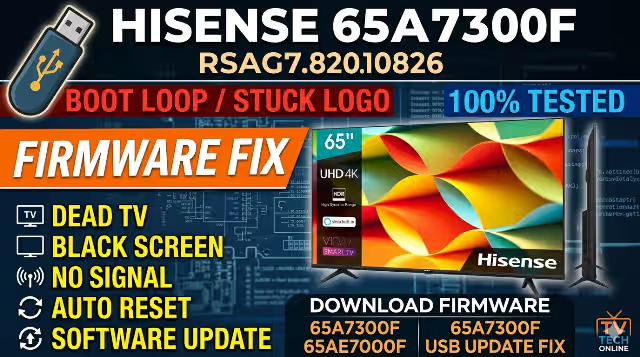
Hisense 65A7300F Firmware Download — RSAG7.820.10826 Main Board USB Update Fix
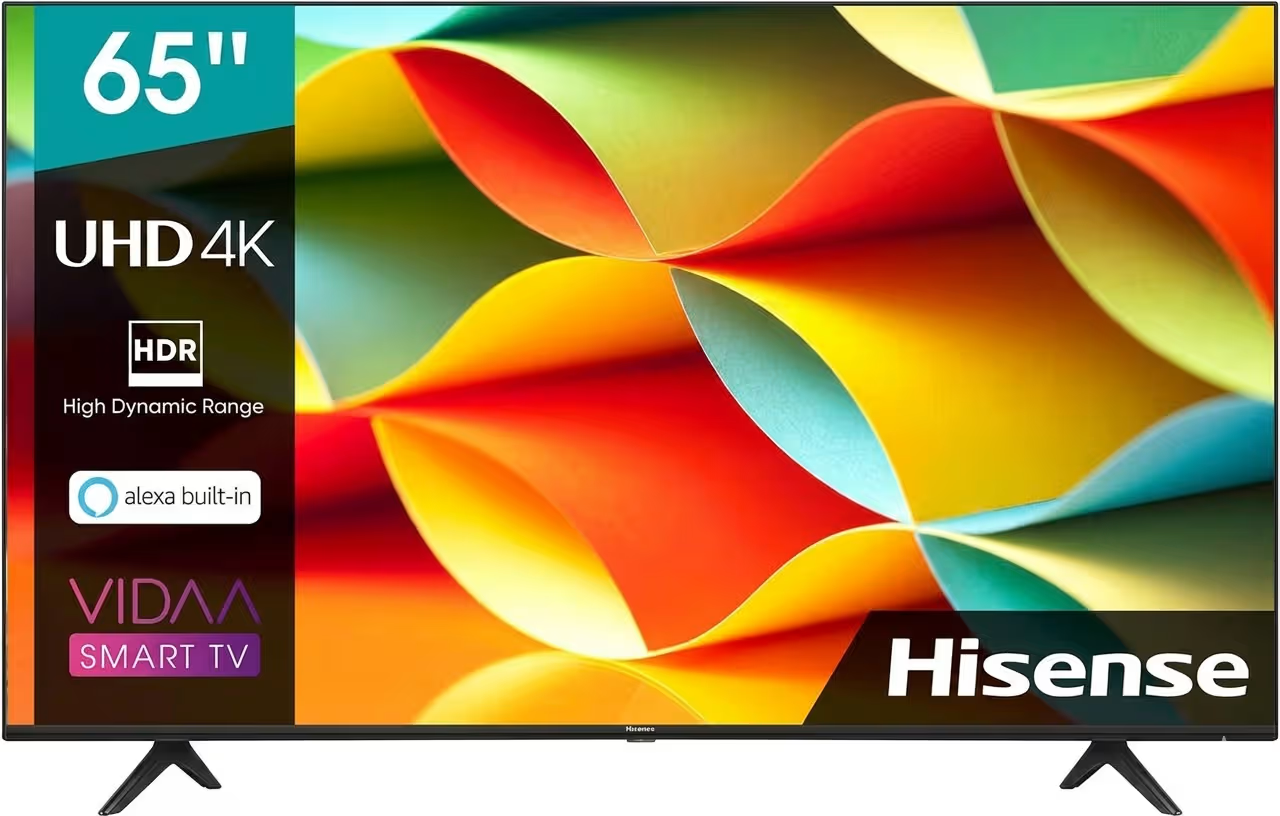
Tested firmware dump for Hisense 65AE7000F / 65A7300F. Fix dead TV, boot loop, stuck logo, and no-signal issues with a simple USB flash update. 100% verified working.
📋 Firmware Specifications
TV Model
Hisense 65A7300F / 65AE7000F
Main Board
RSAG7.820.10826
LCD Panel
UHD (4K Resolution)
Screen Size
65 Inch
Update Method
USB Flash Drive
Status
✅ Tested — 100% OK
🔧 Common Issues & Symptoms (Hisense 65A7300F / 65AE7000F)
The following problems are typically resolved by reflashing the firmware on the RSAG7.820.10826 main board:
- Dead TV / No Power Response — Standby LED off, no relay click, power supply OK but main board unresponsive due to corrupted boot firmware
- Boot Loop / Stuck on Hisense Logo — TV powers on, displays the Hisense splash screen, then restarts endlessly without reaching the home menu
- Black Screen with Backlight On — Backlights illuminate but no picture or OSD appears; audio may or may not be present
- No Signal on All HDMI Inputs — TV menu loads but every HDMI port reports “No Signal” despite functional source devices
- Frozen / Unresponsive System — TV reaches home screen but freezes within seconds; remote control and panel buttons have no effect
- Software Crash After OTA Update — TV became bricked or unstable after a failed over-the-air system update
- Wi-Fi / Network Not Working — Wi-Fi adapter not detected, cannot scan or connect to any network, Bluetooth also missing
- Audio Output Failure — No sound from internal speakers or external audio outputs; volume controls unresponsive
- EEPROM / NAND Corruption — Random settings resets, channel list disappearing, TV reverting to factory state on every reboot
- Smart TV Apps Crashing — Streaming applications fail to launch, crash immediately, or display error codes continuously
- Backlight Flicker / Intermittent Shutdown — Screen flickers or TV shuts down randomly after a few minutes of operation (software-related protection trigger)
- No USB Detection — TV fails to recognize USB devices for media playback or firmware update (requires forced recovery mode)
🩺 Diagnostic & Repair Protocol
Before flashing firmware, follow this systematic diagnostic checklist to confirm the issue is software-related:
Visual Inspection: Open the back cover and inspect the RSAG7.820.10826 main board for burnt components, swollen capacitors, or corroded solder joints. Check all ribbon cable connections to the T-CON and panel.
Power Supply Verification: Measure all voltage rails from the PSU — confirm 12V, 5V, and 3.3V standby outputs are within ±5% tolerance. Verify the main board receives stable power at its input connector.
Backlight Test: Disconnect the main board and power the LED backlight strips directly to rule out backlight driver or LED strip failure. Use a TV backlight tester for individual strip verification.
NAND / eMMC Health Check: If you have a programmer (RT809H / CH341A), read the NAND or eMMC chip to check for bad blocks or data corruption. A failed read often confirms firmware corruption.
Factory Reset Attempt: If the TV still boots to menu, attempt a factory reset through the service menu. On Hisense, try pressing Menu → Support → Self Diagnosis → Reset or use the hidden service code.
USB Firmware Flash: If all hardware checks pass and the issue persists, proceed with the USB firmware update using the tested dump file below. This resolves 90%+ of software-related failures on this board.
💾 USB Firmware Update Procedure
Prepare USB Drive: Use a USB 2.0 flash drive (4GB–16GB recommended). Format it to FAT32 with default allocation size. Ensure the drive is completely empty.
Extract Firmware: Download the firmware file below. Extract the archive contents and copy the firmware folder/file to the root directory of the USB drive. Do not rename any files.
Power Off TV: Unplug the Hisense 65A7300F from the mains power. Wait 30 seconds for all residual charge to dissipate from internal capacitors.
Insert USB: Plug the prepared USB drive into the USB port closest to the HDMI ports (usually USB 1 / Service port) on the TV.
Power On: Plug the TV back into mains power. The TV should automatically detect the USB firmware and begin the update process. The LED indicator will blink during the flash.
Wait for Completion: Do NOT unplug the TV or remove the USB drive during the update. The process takes 3–8 minutes. The TV will automatically reboot once or twice when finished.
Remove USB & Verify: Once the TV boots to the initial setup screen, remove the USB drive. Proceed with the initial setup and run the post-flash verification checks below.
⚠️ Critical Safety Precautions:
• This firmware is specifically for RSAG7.820.10826 main board only. Flashing on an incompatible board will permanently brick the TV.
• Verify your exact main board part number by physically inspecting the PCB before proceeding.
• Ensure stable mains power during the entire flash process — use a UPS if available.
• Do not interrupt the update under any circumstances — power loss during flash = bricked NAND.
• This resource is intended for qualified TV repair technicians with experience in firmware procedures.
• This firmware is specifically for RSAG7.820.10826 main board only. Flashing on an incompatible board will permanently brick the TV.
• Verify your exact main board part number by physically inspecting the PCB before proceeding.
• Ensure stable mains power during the entire flash process — use a UPS if available.
• Do not interrupt the update under any circumstances — power loss during flash = bricked NAND.
• This resource is intended for qualified TV repair technicians with experience in firmware procedures.
✅ Post-Flash Verification Checklist
- TV boots to initial setup screen without boot loop
- All HDMI ports detect and display source devices correctly
- Wi-Fi adapter detected — scans and connects to networks
- Audio output functions on internal speakers and external jacks
- USB ports recognize media devices for playback
- Smart TV apps launch and operate without crashes
- Remote control and panel buttons fully responsive
- Picture settings and display calibration retained after reboot
- No unexpected shutdowns after 30+ minutes of continuous operation
✅ Technician Tip: After successful flashing, enter the service menu and note the new software version for your repair records. It is recommended to perform a channel auto-scan and recalibrate picture settings for the customer’s environment.
🎬 Video Tutorial — USB Firmware Update Guide
⬇️ Firmware Download — Hisense 65A7300F (RSAG7.820.10826)
Click the download button below. A verification page will open first, then the direct download link will appear.
✅ Verification complete — Click below to download:
⬇ Download Firmware FileFile: Hisense_65A7300F_RSAG7.820.10826_USB_Update.zip | Format: USB Update Package