
 ⚡ TECHNICIAN ONLY
✔ TESTED 100%
⚡ TECHNICIAN ONLY
✔ TESTED 100%
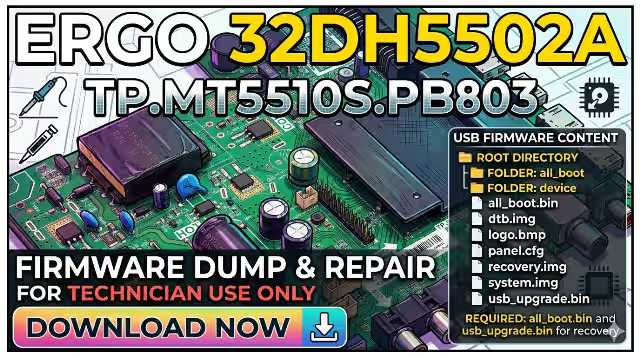
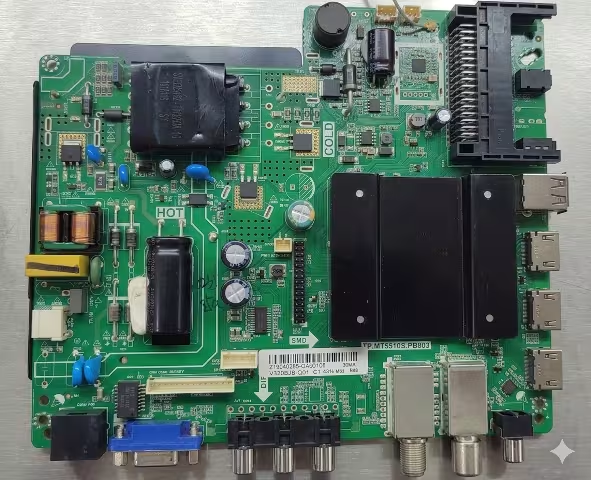
Complete firmware dump for the Ergo 32DH5502A television equipped with the TP.MT5510S.PB803 main board. This firmware has been extracted directly from a known-good working unit and tested 100% working. Designed for professional technicians performing USB firmware recovery, eMMC re-flash, and dead-set revival procedures.
📋 Technical Specifications
⚠️ Known Issues – Ergo 32DH5502A
The following symptoms are commonly reported with this model and can typically be resolved through firmware re-flashing via USB recovery:
🔧 Diagnostic & Repair Protocol
Before performing firmware recovery, follow this diagnostic checklist to identify the root cause and ensure the main board hardware is functional:
| Symptom | Diagnostic Check | Repair Action |
|---|---|---|
| Dead / No standby LED | Check PSU voltages (5V STB, 12V). Verify power IC output. | Replace PSU capacitors or power IC. If voltages OK → re-flash firmware. |
| Stuck on logo | Measure eMMC VCC (3.3V) and CLK signals on main IC. | USB firmware recovery. If fails → re-ball or replace eMMC KLM8G1GETF-B041. |
| Backlight on, no image | Check LVDS cable connection. Measure TCON voltages (VGH/VGL/VCOM). | Re-seat LVDS cable. Flash firmware with correct PT320AT01-5 panel data. |
| No audio | Check audio amplifier IC. Measure speaker output pins. | Replace audio amp IC or re-flash firmware to restore codec settings. |
| HDMI no signal | Check HDMI ESD protection diodes. Test with known-good cable. | Replace HDMI ESD components. Re-flash firmware for EDID reset. |
| Random restart | Check CPU temperature. Inspect for dry solder joints. | Reflow main IC solder. Re-flash firmware to clear corrupted data. |
| eMMC failure | Read eMMC via SPI programmer. Check for bad blocks. | Write full dump to new KLM8G1GETF-B041 eMMC via programmer. |
📥 USB Firmware Recovery – Step by Step
To update the firmware on the Ergo 32DH5502A (TP.MT5510S.PB803), you will need a USB flash drive formatted as FAT32 and the firmware file. Follow these steps carefully:
- Download the firmware file from the download link provided below in the download section.
- Copy the firmware file to a USB flash drive. Make sure the file is placed in the root directory of the USB drive and not inside any folder.
- Insert the USB drive into the USB port on the TP.MT5510S.PB803 mainboard.
- Turn on the TV and the mainboard. The firmware update process will begin automatically upon detecting the valid firmware file on the USB drive.
- Wait for the update process to complete. Do NOT turn off the TV or remove the USB drive during the update process. This may permanently damage the eMMC.
- When the update is complete, the TV will automatically restart. Remove the USB drive from the USB port on the mainboard after successful boot.
🎬 Video Tutorial – Firmware Recovery
Watch the complete video guide demonstrating the USB firmware recovery process for the Ergo 32DH5502A TP.MT5510S.PB803:
⬇️ Download Firmware – Ergo 32DH5502A
TP.MT5510S.PB803 | PT320AT01-5 | KLM8G1GETF-B041
File format: BIN dump | Click once to verify, then click again to access download.
Ensure you match main board, panel, and eMMC before flashing.