
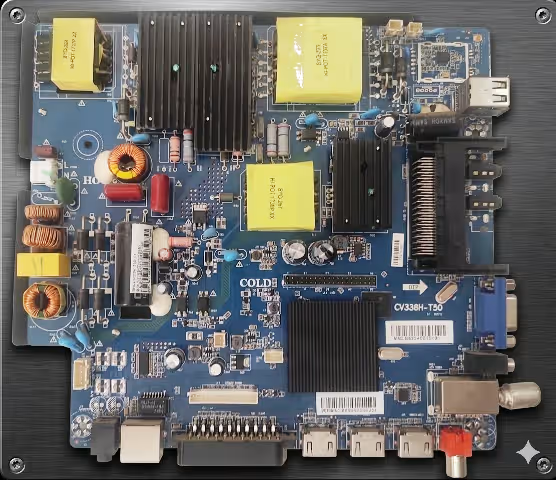
 ⚡ Firmware Dump
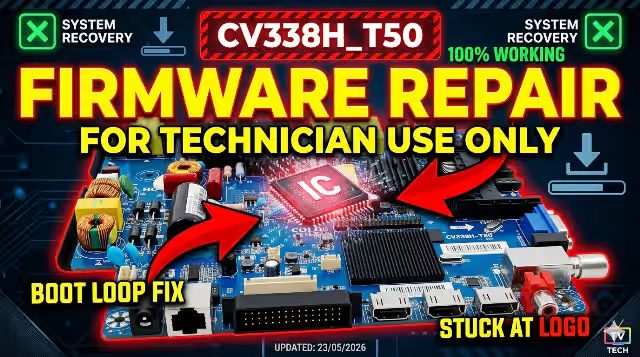
CV338H_T50 Firmware Dump
Inves LED-5017 SMART T2
USB Update Method · SPI Flash · 100% Tested & Working
📋 Device Specifications
| Brand | Inves |
|---|---|
| Model | LED-5017 SMART T2 |
| Main Board | CV338H_T50 |
| LCD Panel | CX500DLEDM |
| Update Method | USB Update (Flash Drive) |
| File Type | SPI Flash Dump |
| Firmware Status | ✔ 100% Tested & Working |
🔧 USB Firmware Update Guide
To update the firmware of the CV338H_T50 mainboard on your Inves LED-5017 SMART T2, you will need a USB flash drive (FAT32 formatted) and the firmware file. Follow these steps carefully:
- Download the firmware file from the download section below. Ensure you get the correct SPI flash dump for CV338H_T50.
- Copy the firmware file to a USB flash drive. Make sure the file is placed in the root directory of the USB drive and not inside any folder. The USB must be formatted as FAT32.
- Insert the USB drive into the USB port on the CV338H_T50 mainboard.
- Turn on the TV and the mainboard will automatically detect the firmware file and begin the update process.
- Wait for the update process to complete. Do not turn off the TV or remove the USB drive during the update process. The screen may flash or go blank — this is normal.
- The TV will automatically restart when the firmware update is complete.
- Remove the USB drive from the USB port on the mainboard after the TV has fully rebooted.
⚠️ Known Issues — Inves LED-5017 SMART T2
The following are common hardware and software issues reported on the Inves LED-5017 SMART T2 with CV338H_T50 mainboard that can be resolved or diagnosed with this firmware dump:
🔬 Diagnostic & Repair Protocol
Follow this systematic diagnostic procedure before and after firmware flashing to identify the root cause of failure on the Inves LED-5017 SMART T2:
Phase 1 — Visual & Physical Inspection
Look for burnt components, swollen capacitors, cracked solder joints, or water damage. Pay close attention to the power regulation section and HDMI IC area.
Verify LVDS cable (mainboard → CX500DLEDM panel), backlight connector, power supply ribbon, and any flat-flex cables. Reseat all connections firmly.
Measure standby voltage (5V STB), main voltage output (12V/24V). Check for shorted diodes, blown fuses, or dried-out electrolytic capacitors.
Phase 2 — Electrical Testing
Use a multimeter to check the SPI flash IC (typically 25Q64 or 25Q128) for proper voltage (3.3V). If the chip shows abnormal resistance readings, it may need replacement before reflashing.
Use an LED tester to check each backlight strip individually. A single failed LED can cause the backlight driver to shut down all strips as a protection measure.
Test each port with known-good cables and devices. Non-functional ports may indicate mainboard IC failure or firmware misconfiguration.
Phase 3 — Firmware Recovery
Use the USB update procedure described above. This is the recommended first-line recovery method for software-related failures.
If USB update fails (mainboard completely dead), desolder the SPI flash IC and use an external programmer (CH341A or RT809H) to write the firmware dump directly to the chip.
After successful firmware installation, verify all functions: DVB-T2 tuner, Smart TV apps, HDMI inputs, USB playback, Wi-Fi connectivity, and audio output. Perform a factory reset if anomalies persist.
🎬 Video Tutorial
Watch the complete firmware update walkthrough for the CV338H_T50 mainboard. Subscribe for more TV repair tutorials and firmware dumps.
⬇ Download CV338H_T50 Firmware Dump
Inves LED-5017 SMART T2 · SPI Flash File · USB Update Ready
🔒 Click the download button. A verification page will open in a new tab.
After verification, you will be redirected to the direct download link automatically.